Navigation
-
-
Standalone Tebex Templates & themes Websites Pterodactyl Themes Addons Eggs NamelessMC Templates Modules XenForo Themes Addons Invision Community Themes Plugins Translations WHMCS Themes Modules Paymenter Themes Extensions Calagopus Themes Extensions Eggs LeaderOS themes Ghost themes Shopify themes Wix themes Squarespace themes Other webstores CraftingStore templates MineStore themes PayNow templates Other
-
-
-
Install the app
More options
You are using an out of date browser. It may not display this or other websites correctly.
You should upgrade or use an alternative browser.
You should upgrade or use an alternative browser.
Best OBS settings for recording?
- Thread starter Joshua C
- Start date
- Status
- This thread has been locked.


PebbleHost
High performance, consistent uptime and fast support. Minecraft hosting that just works.

What are you aiming for? Just going to comment some things down in case you're unaware of some properties because well... I don't know what you already know lol. Be aware that I'm not a professional and I'm also learning this stuff too.
You can outscale to pretty much whatever resolution you want, but also be aware the higher you go the more it's going to be an impact on your PC; this will increase CPU usage and if using GPU encoding then it's going to take a lot of the processing from your encoding chip. Not only that but it's going to increase your file storage.
Downsides out of the way, you can use a 16:9 ratio calculator if you plan to upload on sites such as YouTube and possibly on streaming services such as Twitch to reduce black bars for the videos you play. By using this you can see that 4k would be 3840x2160 and 2k would be 2560x1440
You can see in your settings (if you're using advanced settings) these settings:
 which you can chose any of those resolutions when recording.
BUT, then you have to maintain bitrate resolution which you would need to play around with and the best way to maintain optimization with your PC as well as the quality of your output end result.

My best guess is to play around with it but the higher resolution you go the more bitrate to maintain quality with, therefore sacrificing performance.
Instead, you can get some video editing software and render it out at a higher resolution, but you'll sacrifice quality due to the further outscale and bitrate properties.
You can outscale to pretty much whatever resolution you want, but also be aware the higher you go the more it's going to be an impact on your PC; this will increase CPU usage and if using GPU encoding then it's going to take a lot of the processing from your encoding chip. Not only that but it's going to increase your file storage.
Downsides out of the way, you can use a 16:9 ratio calculator if you plan to upload on sites such as YouTube and possibly on streaming services such as Twitch to reduce black bars for the videos you play. By using this you can see that 4k would be 3840x2160 and 2k would be 2560x1440
You can see in your settings (if you're using advanced settings) these settings:
BUT, then you have to maintain bitrate resolution which you would need to play around with and the best way to maintain optimization with your PC as well as the quality of your output end result.
My best guess is to play around with it but the higher resolution you go the more bitrate to maintain quality with, therefore sacrificing performance.
Instead, you can get some video editing software and render it out at a higher resolution, but you'll sacrifice quality due to the further outscale and bitrate properties.
Last edited:
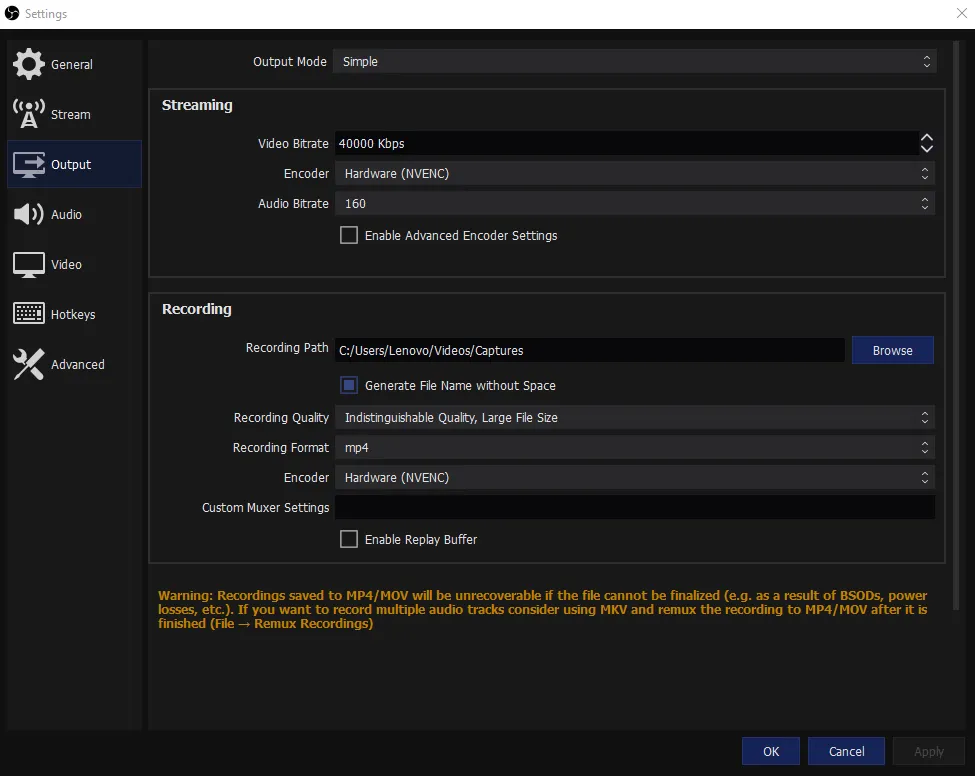
If you go to output mode to the top and select advanced, you'll have a lot more options like mine. This gives a lot of leeway to having more control of whatever you're outputting. IMO I think 40k bitrate is a lot for 1080p and maybe more or less 1440p, but that's just my OP.
You can also go into video settings (left tab) and chose your output scaled resolution so it is global instead of individual settings for streaming + recording.
This is my advance setting -
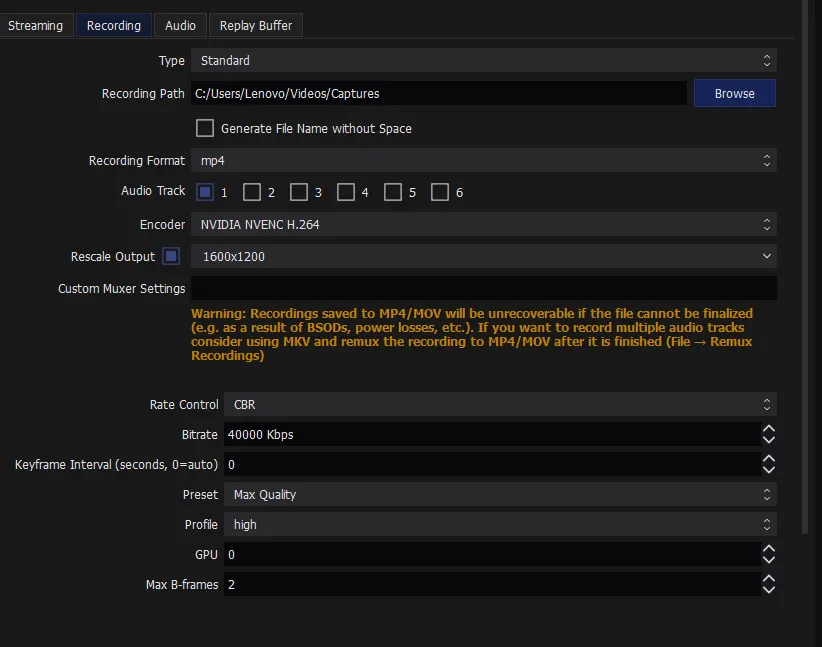
https://gyazo.com/575a75549d05204ad8be38aff5b13a1e
I never used this btw so I have no idea how this will perform.
My resolution is exactly 1600x1200 (goes for my monitor as well with 60hz Its bad I know)
Base Resolution settings -
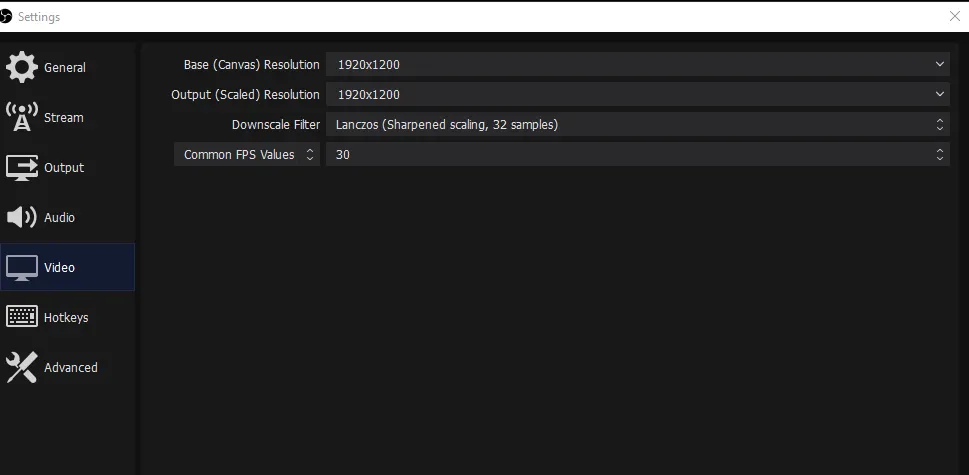
https://gyazo.com/230d01a419687579167efeedfef6cb72
https://gyazo.com/575a75549d05204ad8be38aff5b13a1e
I never used this btw so I have no idea how this will perform.
My resolution is exactly 1600x1200 (goes for my monitor as well with 60hz Its bad I know)
Base Resolution settings -
https://gyazo.com/230d01a419687579167efeedfef6cb72
You can change your base (canvas) resolution to 1920x1080 so it maintains the 16:9 aspect ratio when scaling, and then use the scaled resolution for what you're outputting it for. Like 2k, 4k, which you look up the resolution sizes on Google. You can disable the option for "rescale output" in your first screenshot and just use the video settings as it's a global setting.This is my advance setting -
https://gyazo.com/575a75549d05204ad8be38aff5b13a1e
I never used this btw so I have no idea how this will perform.
My resolution is exactly 1600x1200 (goes for my monitor as well with 60hz Its bad I know)
Base Resolution settings -
https://gyazo.com/230d01a419687579167efeedfef6cb72
- Status
- This thread has been locked.