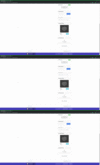
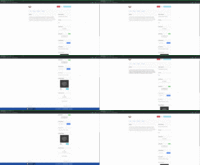
I've gotten quite a few requests from people asking me how to move the tebex bar. Instead of having to repeat myself over and over I figured I'd make a guide on how to implement this. The following codes will allow you to move the tebex bar to the bottom ONLY. This method is completely allowed by Tebex as stated on their knowledgebase here:
Disclaimer: If you use the following codes to hide/remove the tebex bar, I am not liable for consequences that will occur on your webstore. This guide is ONLY here to move the tebex bar to the bottom.
| For Tebex Premium Plan:
Notice: I do not recommend this way if you're on the Ultimate plan.
If you want the tebex bar at the bottom of the page (right below the copyright block):
Head over to your Tebex Panel and follow these steps:
Preview:

| For Tebex Ultimate Plan:
Notice: This way will only work with the Tebex Ultimate Plan.
Head over to your Tebex Panel and follow these steps:

| For either plan:
Notice: This way will work on either Tebex Ultimate or Premium plans.
If you want to display at the bottom at all times (even when scrolling):
Head over to your Tebex Panel and follow these steps:
Preview:

Please do not ask me how to remove the bar entirely because I will not do this. Other than that, feel free to ask me any questions.
This guide will not tell you how to remove it or hide the bar but how to move it to the bottom (as this is what most people are requesting).You cannot disable the Tebex Accounts bar (And you are not allowed to hide it). This feature is in place to comply with GDPR and European Union regulations relating to data privacy. You are welcome to place it at the bottom of your webstore using custom CSS if you wish.
Disclaimer: If you use the following codes to hide/remove the tebex bar, I am not liable for consequences that will occur on your webstore. This guide is ONLY here to move the tebex bar to the bottom.
| For Tebex Premium Plan:
Notice: I do not recommend this way if you're on the Ultimate plan.
If you want the tebex bar at the bottom of the page (right below the copyright block):
Head over to your Tebex Panel and follow these steps:
- Go to Webstore > Design > Appearance > Edit Flat Template > Edit theme (right box)
- Add this code:
Code:body { margin-top: 0px !important; padding-top: 0px !important; position: relative; } .footer { margin-bottom: 75px; display: block; } .tebexLogin { position: absolute !important; top: unset !important; bottom: 0px; }
Preview:
| For Tebex Ultimate Plan:
Notice: This way will only work with the Tebex Ultimate Plan.
Head over to your Tebex Panel and follow these steps:
- Go to Webstore > Design > Appearance > Edit your Activated Template > Edit Template (left box) > layout.html
- Scroll down until you find the ending tag </body>
- Add this code right before the ending tag </body>:
HTML:<script> $(document).ready(function(){ $(".tebexLogin").appendTo("body"); }); </script> - Then save and go to Webstore > Design > Appearance > Edit your Activated Template > Edit Theme (right box)
- Add this code:
Code:body { margin-top: 0px !important; padding-top: 0px !important; position: relative; } .tebexLogin { position: relative !important; top: 0px !important; }
| For either plan:
Notice: This way will work on either Tebex Ultimate or Premium plans.
If you want to display at the bottom at all times (even when scrolling):
Head over to your Tebex Panel and follow these steps:
- Go to Webstore > Design > Appearance > Edit Flat Template > Edit theme (right box)
- Add this code:
Code:body { margin-top: 0px !important; padding-top: 0px !important; } .footer { margin-bottom: 75px; display: block; } .tebexLogin { position: fixed !important; top: unset !important; bottom: 0px; }
Preview:
Please do not ask me how to remove the bar entirely because I will not do this. Other than that, feel free to ask me any questions.