Creating an advanced scoreboard theme
With FeatherBoard 4
Introduction
I've been asked this a lot, so I decided to create a dedicated thread for it. Ever since FeatherBoard 4 there has been a new feature that allowed for settings, scripts and other cool things. However they are not widely used, while they actually make a lot of sense for people offering configuration services or publishing their scoreboard themes. The main problem is that users see them as individual features rather than features that actually allow you to create something cool when combined.
This is a tutorial on how to combine those features to create something that is both maintainable for you as someone who designs a scoreboard and someone who received your scoreboard and wants to make alterations.
Understanding the features
There are 5 features you should be aware of:
If the above sounds like hard work or difficult then you should definitely keep on reading, because it really depends on how far you want to go. These features combined allow you to create really advanced and amazing things... but why should you do it?
Well, if you are creating a simple non-animated scoreboard then there is indeed not much use. But once you start to create animations or if you want someone else to alter the names inside your animations... it becomes a problem.
Tutorials
For the purpose of this set of tutorials I will use the free scoreboard from https://www.mc-market.org/resources/1943/
There are a lot of problems in this scoreboard what makes it a good candidate for this set of tutorials.
Tutorial 1: Color settings
What will you learn:
In this tutorial we will add simple settings for each color we use. Create a new scoreboard called tutorial.yml in the scoreboards directory.
If I want to change a color, I have to go through all these lines to replace that color. When you have bigger animations it will become a real problem. This can be made much easier.
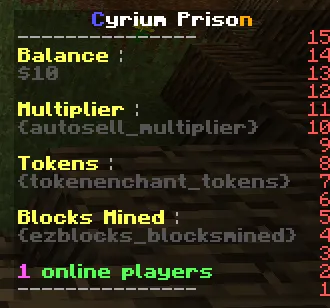
We will add settings to our scoreboard. Create a new section called "settings" in the top of your scoreboard YML file and add whatever key: value pair you like.
I've added settings for the light gray, dark gray and subtitles (Tokens, Blocks mined,...) for now I haven't touched the colors inside the title animation.
The only left thing to do is use these settings as placeholders inside our actual design:
As you can see I've used $setting_SETTINGNAMEHERE$ to replace them with the settings.

When we reload we will see that our scoreboard still looks the same (notice however that I did change the online players color to be more consistent with the rest).

We can now change the color in the settings of the scoreboard or live with the in-game command:
/featherboard editsetting tutorial color-subtitle &a
Tutorial 2: Color schemes
What will you learn:
We will use the previous tutorial. In that tutorial we used setting placeholders for the colors. We will not change anything to that code, instead we are going to remove the settings and add one simple "color-scheme" setting instead. We will then read this setting in a script and dynamically create our "color-light", "color-subtitle",... based on the selected 'scheme'.
The first step is to trash the settings and create a new setting called 'color-scheme'.
Next we will need to add a script to dynamically create our settings we just removed, because we are still using them as placeholders in our "lines".
To add a script you basically have to write it in a key called "script-pre" or "script-post" inside the root node of your scoreboard yaml.
The following script will just make our scoreboard work again, it will manually create the settings without looking at the newly created setting.
Notice the "|" behind script-pre. This is a YAML syntax that allows you to have multiple lines of text. If you have never programmed in your life, those three lines may look scary.
Let's start off by explaining what "board" is. This is a reference to the scoreboard API of FeatherBoard. When you are using this, you are basically interacting with the Java code of the plugin.
So what are we doing? We are getting the Meta data of the board and manually setting the setting called "color-light" (or whatever) to "&7".
The convention of javascript dictates that you should end every line with a ";".
Now, this is basically what we've had in Tutorial 1 but a bit more complicated to change... now comes the time when we are actually going to use the 'color-scheme' setting.
So what have I done here? Apart from "board" there is another variable you can use called "settings". This is a two dimensional array containing your settings. I've simply checked if the setting called "color-scheme" was "RED" and changed the colors accordingly. Else if the setting was "GREEN" I chose other colors.
The following code does exactly the same, however it is a bit cleaner using a 'switch statement':
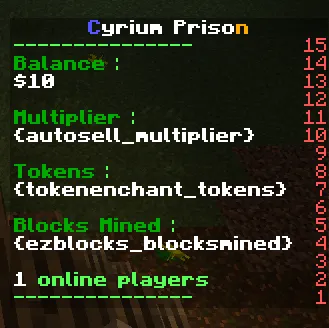
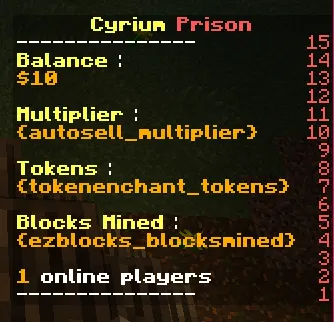
And it actually works!
Tutorial 3: Custom title effect
What will you learn:
In this tutorial we will learn how to create a custom title effect. Be warned, this is a bigger step forward then the last tutorial in terms of Javascript knowledge.
This effect was new to me as well. It seems it changes the color when it goes in, then goes out again to go in again with a different color:

So let's start designing!
Working upon our last tutorial I created a function called "titleEffect" that takes 1 argument called "serverName".
A function is an action you can execute. In the scope of designing animations or other similar things like we are doing now, they allow you to write less code in a more organized manner.
What the function will do is convert our "serverName" to an array of frames that make our animation.
As you can see in the title line we've added the following:
<% titleEffect("MCMarket"); %>
This is also Javascript, it executes the function we've created earlier with the argument "MCMarket".
When the return type is an array, it will add multiple frames for each frame of the returned animation.
When the return type is not an array it will just replace those <% ...%> with whatever is returned.
When reloading and testing your function you can use the following command:
/featherboard reload tutorial
This reload command only reloads the board, not the entire plugin.
All you have to do now is add a setting with the server name and use it inside the line:
You can expand this even more, add arguments for colors and so on... creating your own effects that can have a dynamic input is really fun.
Tutorial 4: Configurable information
What will you learn:
Tutorial 5: Configurable amount of lines
What will you learn:
Tutorial 6: Final tweaks when selling
What will you learn:
With FeatherBoard 4
Introduction
I've been asked this a lot, so I decided to create a dedicated thread for it. Ever since FeatherBoard 4 there has been a new feature that allowed for settings, scripts and other cool things. However they are not widely used, while they actually make a lot of sense for people offering configuration services or publishing their scoreboard themes. The main problem is that users see them as individual features rather than features that actually allow you to create something cool when combined.
This is a tutorial on how to combine those features to create something that is both maintainable for you as someone who designs a scoreboard and someone who received your scoreboard and wants to make alterations.
Understanding the features
There are 5 features you should be aware of:
- Scoreboard settings: These are basically settings per scoreboard file you can choose and make yourself. You can name them how you want, they can be whatever you want.
- Settings as placeholders: You can use settings as 'placeholders' that get replaced. Meaning you can make a setting that contains a server name, and use that as a placeholder in your title
- Javascript: If settings is not enough for you there is javascript. You can access the settings and scoreboard design from within the javascript. You could use this to enable or disable certain features, create functions that create animations, ...
The access to the scoreboard basically allows you to dynamically create,remove and alter lines based on settings - JIT inline Javascript: You can use <script>....</script> to execute a script when the frame is called. You could make a function for example and call it from within those brackets
- PRERENDERED inline Javascript: Same as JITted javascript, but this is prerendered on load. This means that you can't use variable data such as placeholders in it.
If the above sounds like hard work or difficult then you should definitely keep on reading, because it really depends on how far you want to go. These features combined allow you to create really advanced and amazing things... but why should you do it?
Well, if you are creating a simple non-animated scoreboard then there is indeed not much use. But once you start to create animations or if you want someone else to alter the names inside your animations... it becomes a problem.
- You can create your own animation effects
- You can let users enable/disable certain animations
- You can let users quickly personalize your scoreboard
- You can let users quickly change color schemes
Tutorials
For the purpose of this set of tutorials I will use the free scoreboard from https://www.mc-market.org/resources/1943/
There are a lot of problems in this scoreboard what makes it a good candidate for this set of tutorials.
- The colors are not configurable
- The server name is not configurable
- The server name is inside an animation
- The scoreboard uses specific plugins for the information
Tutorial 1: Color settings
What will you learn:
- Create settings
- Use the settings as placeholders
In this tutorial we will add simple settings for each color we use. Create a new scoreboard called tutorial.yml in the scoreboards directory.
Code:
lines:
    title:
        frames:
        - '&e&lC&f&lyrium Priso&c&ln'
        - '&e&lCy&f&lrium Pris&c&lon'
        - '&e&lCyr&f&lium Pri&c&lson'
        - '&e&lCyri&f&lum Pr&c&lison'
        - '&e&lCyriu&f&lm P&c&lrison'
        - '&e&lCyrium&c&l Prison'
        - '&e&lCyriu&f&lm P&c&lrison'
        - '&e&lCyri&f&lum Pr&c&lison'
        - '&e&lCyr&f&lium Pri&c&lson'
        - '&e&lCy&f&lrium Pris&c&lon'
        - '&9&lC&f&lyrium Priso&6&ln'
        - '&9&lC&f&lyrium Priso&6&ln'
        - '&9&lCy&f&lrium Pris&6&lon'
        - '&9&lCyr&f&lium Pri&6&lson'
        - '&9&lCyri&f&lum Pr&6&lison'
        - '&9&lCyriu&f&lm P&6&lrison'
        - '&9&lCyrium &6&lPrison'
        - '&9&lCyriu&f&lm P&6&lrison'
        - '&9&lCyri&f&lum Pr&6&lison'
        - '&9&lCyr&f&lium Pri&6&lson'
        - '&9&lCy&f&lrium Pris&6&lon'
        - '&9&lC&f&lyrium Priso&6&ln'
        interval: 3
        random: false
    header:
        frames:
        - '&7---------------'
        interval: 10
    player-label:
        frames:
        - '&e&lBalance &7:'
        interval: 100
        random: false
    player-line1:
        frames:
        - '&8&l${money_formatted}'
        interval: 2
        random: false
    spacer1:
        frames: []
        interval: 100
        random: false
    news-info:
        frames:
        - '&e&lMultiplier &7:'
        interval: 100
        random: false
    news:
        frames:
        - '&8&l{autosell_multiplier}'
        interval: 2
        random: false
    spacer2:
        frames: []
        interval: 100
        random: false
    timesplayed-label:
        frames:
        - '&e&lTokens &7:'
        interval: 100
        random: false
    timesplayed:
        frames:
        - '&8&l{tokenenchant_tokens}'
        interval: 100
        random: false
    spacer3:
        frames: []
        interval: 100
        random: false
    server-label:
        frames:
        - '&e&lBlocks Mined &7:'
        interval: 100
        random: false
    server-line1:
        frames:
        - '&8&l{ezblocks_blocksmined}'
        interval: 1
        random: false
    spacer4:
        frames: []
        interval: 100
        random: false
    server-line2:
        frames:
        - '&d&l{onlineplayers} &a&lonline players'
        interval: 10
        random: false
    footer:
        frames:
        - '&7---------------'
interval: 10We will add settings to our scoreboard. Create a new section called "settings" in the top of your scoreboard YML file and add whatever key: value pair you like.
Code:
settings:
  color-light: "&7"
  color-dark: "&8"
  color-subtitle: "&e"
...
lines:
...
I've added settings for the light gray, dark gray and subtitles (Tokens, Blocks mined,...) for now I haven't touched the colors inside the title animation.
The only left thing to do is use these settings as placeholders inside our actual design:
Code:
settings:
  color-light: "&7"
  color-dark: "&8"
  color-subtitle: "&e"
lines:
    title:
        frames:
        - '&e&lC&f&lyrium Priso&c&ln'
        - '&e&lCy&f&lrium Pris&c&lon'
        - '&e&lCyr&f&lium Pri&c&lson'
        - '&e&lCyri&f&lum Pr&c&lison'
        - '&e&lCyriu&f&lm P&c&lrison'
        - '&e&lCyrium&c&l Prison'
        - '&e&lCyriu&f&lm P&c&lrison'
        - '&e&lCyri&f&lum Pr&c&lison'
        - '&e&lCyr&f&lium Pri&c&lson'
        - '&e&lCy&f&lrium Pris&c&lon'
        - '&9&lC&f&lyrium Priso&6&ln'
        - '&9&lC&f&lyrium Priso&6&ln'
        - '&9&lCy&f&lrium Pris&6&lon'
        - '&9&lCyr&f&lium Pri&6&lson'
        - '&9&lCyri&f&lum Pr&6&lison'
        - '&9&lCyriu&f&lm P&6&lrison'
        - '&9&lCyrium &6&lPrison'
        - '&9&lCyriu&f&lm P&6&lrison'
        - '&9&lCyri&f&lum Pr&6&lison'
        - '&9&lCyr&f&lium Pri&6&lson'
        - '&9&lCy&f&lrium Pris&6&lon'
        - '&9&lC&f&lyrium Priso&6&ln'
        interval: 3
        random: false
    header:
        frames:
        - '$setting_color-light$---------------'
        interval: 10
    player-label:
        frames:
        - '$setting_color-subtitle$&lBalance $setting_color-light$:'
        interval: 100
        random: false
    player-line1:
        frames:
        - '$setting_color-dark$&l${money_formatted}'
        interval: 2
        random: false
    spacer1:
        frames: []
        interval: 100
        random: false
    news-info:
        frames:
        - '$setting_color-subtitle$&lMultiplier $setting_color-light$:'
        interval: 100
        random: false
    news:
        frames:
        - '$setting_color-dark$&l{autosell_multiplier}'
        interval: 2
        random: false
    spacer2:
        frames: []
        interval: 100
        random: false
    timesplayed-label:
        frames:
        - '$setting_color-subtitle$&lTokens $setting_color-light$:'
        interval: 100
        random: false
    timesplayed:
        frames:
        - '$setting_color-dark$&l{tokenenchant_tokens}'
        interval: 100
        random: false
    spacer3:
        frames: []
        interval: 100
        random: false
    server-label:
        frames:
        - '$setting_color-subtitle$&lBlocks Mined $setting_color-light$:'
        interval: 100
        random: false
    server-line1:
        frames:
        - '$setting_color-dark$&l{ezblocks_blocksmined}'
        interval: 1
        random: false
    spacer4:
        frames: []
        interval: 100
        random: false
    server-line2:
        frames:
        - '$setting_color-dark$&l{onlineplayers} $setting_color-light$&lonline players'
        interval: 10
        random: false
    footer:
        frames:
        - '$setting_color-light$---------------'
interval: 10When we reload we will see that our scoreboard still looks the same (notice however that I did change the online players color to be more consistent with the rest).
We can now change the color in the settings of the scoreboard or live with the in-game command:
/featherboard editsetting tutorial color-subtitle &a
Tutorial 2: Color schemes
What will you learn:
- Add script to a scoreboard
- Create a Javascript code that checks the value of a setting
- Dynamically create settings in Javascript
We will use the previous tutorial. In that tutorial we used setting placeholders for the colors. We will not change anything to that code, instead we are going to remove the settings and add one simple "color-scheme" setting instead. We will then read this setting in a script and dynamically create our "color-light", "color-subtitle",... based on the selected 'scheme'.
The first step is to trash the settings and create a new setting called 'color-scheme'.
Code:
settings:
  # Choose between:
  # RED, GREEN, BLUE, YELLOW
  color-scheme: 'RED'
...
lines:
...To add a script you basically have to write it in a key called "script-pre" or "script-post" inside the root node of your scoreboard yaml.
- script-pre: This script code is called BEFORE the lines are loaded. This means you can add new settings that can be used as placeholders.
- script-post: This script code is called AFTER the lines are loaded. This means you can manipulate these lines or add new ones.
The following script will just make our scoreboard work again, it will manually create the settings without looking at the newly created setting.
Code:
settings:
  # Choose between:
  # RED, GREEN, BLUE, YELLOW
  color-scheme: 'RED'
script-pre: |
  board.getMeta().setSetting("color-light","&7");
  board.getMeta().setSetting("color-dark","&8");
board.getMeta().setSetting("color-subtitle","&e");Let's start off by explaining what "board" is. This is a reference to the scoreboard API of FeatherBoard. When you are using this, you are basically interacting with the Java code of the plugin.
So what are we doing? We are getting the Meta data of the board and manually setting the setting called "color-light" (or whatever) to "&7".
The convention of javascript dictates that you should end every line with a ";".
Now, this is basically what we've had in Tutorial 1 but a bit more complicated to change... now comes the time when we are actually going to use the 'color-scheme' setting.
Code:
settings:
  # Choose between:
  # RED, GREEN, BLUE, YELLOW
  color-scheme: 'GREEN'
script-pre: |
  if (settings['color-scheme'] == "RED"){
    board.getMeta().setSetting("color-light","&8");
    board.getMeta().setSetting("color-dark","&4");
    board.getMeta().setSetting("color-subtitle","&c");
  }else if (settings['color-scheme'] == "GREEN"){
    board.getMeta().setSetting("color-light","&a");
    board.getMeta().setSetting("color-dark","&f");
    board.getMeta().setSetting("color-subtitle","&2");
  }else if (settings['color-scheme'] == "BLUE"){
    board.getMeta().setSetting("color-light","&3");
    board.getMeta().setSetting("color-dark","&1");
    board.getMeta().setSetting("color-subtitle","&9");
  }else if (settings['color-scheme'] == "YELLOW"){
    board.getMeta().setSetting("color-light","&f");
    board.getMeta().setSetting("color-dark","&6");
    board.getMeta().setSetting("color-subtitle","&e");
}The following code does exactly the same, however it is a bit cleaner using a 'switch statement':
Code:
settings:
  # Choose between:
  # RED, GREEN, BLUE, YELLOW
  color-scheme: 'GREEN'
script-pre: |
  switch(settings['color-scheme']){
    case "RED":
        board.getMeta().setSetting("color-light","&8");
        board.getMeta().setSetting("color-dark","&4");
        board.getMeta().setSetting("color-subtitle","&c");
        break;
    case "GREEN":
        board.getMeta().setSetting("color-light","&a");
        board.getMeta().setSetting("color-dark","&f");
        board.getMeta().setSetting("color-subtitle","&2");
        break;
    case "BLUE":
        board.getMeta().setSetting("color-light","&3");
        board.getMeta().setSetting("color-dark","&1");
        board.getMeta().setSetting("color-subtitle","&9");
        break;
    case "YELLOW":
        board.getMeta().setSetting("color-light","&f");
        board.getMeta().setSetting("color-dark","&6");
        board.getMeta().setSetting("color-subtitle","&e");
        break;
  }
And it actually works!
Tutorial 3: Custom title effect
What will you learn:
- Create a custom effect
- Use inline prerendered javascript to show this effect
In this tutorial we will learn how to create a custom title effect. Be warned, this is a bigger step forward then the last tutorial in terms of Javascript knowledge.
This effect was new to me as well. It seems it changes the color when it goes in, then goes out again to go in again with a different color:
So let's start designing!
Code:
settings:
  # Choose between:
  # RED, GREEN, BLUE, YELLOW
  color-scheme: 'YELLOW'
script-pre: |
  function titleEffect(serverName){
    var animation = [];
    // We will create our animation here
    return animation;
  }

  switch(settings['color-scheme']){
    case "RED":
        board.getMeta().setSetting("color-light","&8");
        board.getMeta().setSetting("color-dark","&4");
        board.getMeta().setSetting("color-subtitle","&c");
        break;
    case "GREEN":
        board.getMeta().setSetting("color-light","&a");
        board.getMeta().setSetting("color-dark","&f");
        board.getMeta().setSetting("color-subtitle","&2");
        break;
    case "BLUE":
        board.getMeta().setSetting("color-light","&3");
        board.getMeta().setSetting("color-dark","&1");
        board.getMeta().setSetting("color-subtitle","&9");
        break;
    case "YELLOW":
        board.getMeta().setSetting("color-light","&f");
        board.getMeta().setSetting("color-dark","&6");
        board.getMeta().setSetting("color-subtitle","&e");
        break;
  }
lines:
  title:
    frames:
    - '<% titleEffect("MCMarket"); %>'
    interval: 3
    random: false
...A function is an action you can execute. In the scope of designing animations or other similar things like we are doing now, they allow you to write less code in a more organized manner.
What the function will do is convert our "serverName" to an array of frames that make our animation.
As you can see in the title line we've added the following:
<% titleEffect("MCMarket"); %>
This is also Javascript, it executes the function we've created earlier with the argument "MCMarket".
When the return type is an array, it will add multiple frames for each frame of the returned animation.
When the return type is not an array it will just replace those <% ...%> with whatever is returned.
Before I jump right to the result I am going to show this part. As you can see from the GIF animation above, the effect goes to the center. What I am going to do is split our server name in two parts (+ middle in case its not even) and apply the effect to them individually. At the end I just put them together and "push" them to the array called animation that will contain our frames.
Intermezzo: https://www.w3schools.com/js/js_string_methods.asp
Next I had to see how the effect actually worked and calculate how many frames it would be depending on the length of our server name. The result is not really important as the effect I wanted to replicate was a bit difficult to start with. However here it is:
It's basically just math. Counting how many Yellow and Red letters I need on each side and adding that frame to the final animation. I suggest experimenting with the above effect and trying to change things.
Intermezzo: https://www.w3schools.com/js/js_string_methods.asp
Next I had to see how the effect actually worked and calculate how many frames it would be depending on the length of our server name. The result is not really important as the effect I wanted to replicate was a bit difficult to start with. However here it is:
Code:
  function titleEffect(serverName){
    var animation = [];
    // The effect goes to the middle. So we need to find the middle
    // I am going to split the serverName in two parts and apply
    // an effect to each part.
    var part1 = serverName.substring(0,Math.floor(serverName.length / 2));
    var part2 = serverName.substring(Math.ceil(serverName.length / 2));
    var middle = serverName.substring(Math.floor(serverName.length / 2), Math.ceil(serverName.length / 2));
    // How many frames will our animation consist off?
    // 1) Yellow fade in/out on left side and red fade in/out on right side
    // 2) Indigo fade in/out on left side and gold fade in/out on right side
    // Fade in 1 takes     length/2             to fade in
    // and                 (length/2) - 2       to fade out
    //
    // Fade in 2 takes     (length/2) + 1       to fade in
    // and                 (length/2) - 1       to fade out
    //
    // Total: (length/2)+((length/2) - 2)+((length/2) + 1)+((length/2) - 1)

    var fade1_left_in = part1.length;
    var fade1_left_out = part1.length - 2;
    var fade1_right_in = part2.length;
    var fade1_right_out = part2.length - 2;
    var fade2_left_in = part1.length + 1;
    var fade2_left_out = part1.length - 1;
    var fade2_right_in = part2.length + 1;
    var fade2_right_out = part2.length - 1;

    var amountFrames = fade1_right_in + fade1_right_out + fade2_right_in + fade2_right_out;
    for (var frameNr = 0 ; frameNr < amountFrames ; frameNr++){
        // Create each frame here
        var frame = "";

        if (frameNr < fade1_right_in + fade1_right_out + (middle == "" ? 0 : 1)){
            // FADE 1
            if (frameNr < fade1_right_in){
                // IN
                frame += "&e&l" + part1.substring(0,frameNr);   // Yellow letters
                frame += "&f&l" + part1.substring(frameNr);      // White letters
                frame += middle;
                if (part2.substring(0,part2.length - frameNr) != "")
                    frame += "&f&l" + part2.substring(0,part2.length - frameNr);   // White letters
                frame += "&c&l" + part2.substring(part2.length - frameNr);      // Red letters
            }else{
                // OUT
                frame += "&e&l" + part1.substring(0,part1.length - (frameNr - fade1_right_in));   // Yellow letters
                frame += "&f&l" + part1.substring(part1.length - (frameNr - fade1_right_in));      // White letters
                frame += middle;
                if (part2.substring(0,frameNr - fade1_right_in) != "")
                    frame += "&f&l" + part2.substring(0,frameNr - fade1_right_in);   // White letters
                frame += "&c&l" + part2.substring(frameNr - fade1_right_in);      // Red letters
            }
        }else if (frameNr > fade1_right_in + fade1_right_out  + (middle == "" ? 0 : 1)) {
            // FADE 2
            // This fade starts AFTER fade 1..
            var fadeStart = fade1_right_in + fade1_right_out;
            if (frameNr < fadeStart + fade2_right_in){
                // IN
                frame += "&9&l" + part1.substring(0,frameNr - fadeStart);
                frame += "&f&l" + part1.substring(frameNr - fadeStart);
                frame += middle;
                if (part2.substring(0,part2.length - frameNr + fadeStart) != "")
                    frame += "&f&l" + part2.substring(0,part2.length - frameNr + fadeStart);
                frame += "&6&l" + part2.substring(part2.length - frameNr + fadeStart);
            }else{
                // OUT
                frame += "&9&l" + part1.substring(0,part1.length - frameNr + fade2_right_in + fadeStart - (middle == "" ? 0 : 1));
                frame += "&f&l" + part1.substring(part1.length - frameNr + fade2_right_in + fadeStart - (middle == "" ? 0 : 1));
                frame += middle;
                if (part2.substring(0,frameNr - fade2_right_in - fadeStart + (middle == "" ? 0 : 1)) != "")
                    frame += "&f&l" + part2.substring(0,frameNr - fade2_right_in - fadeStart + (middle == "" ? 0 : 1));
                frame += "&6&l" + part2.substring(frameNr - fade2_right_in - fadeStart + (middle == "" ? 0 : 1));
            }
        }else{
            // Fade 1 and fade 2 transition
            frame += "&9&l" + part1.substring(0,1);
            frame += "&f&l" + part1.substring(1);
            frame += middle;
            frame += "&f&l" + part2.substring(0,part2.length - 1);
            frame += "&6&l" + part2.substring(part2.length - 1);
        }

        // Add the frame to our animation
        animation.push(frame);
    }
    return animation;
}When reloading and testing your function you can use the following command:
/featherboard reload tutorial
This reload command only reloads the board, not the entire plugin.
All you have to do now is add a setting with the server name and use it inside the line:
Code:
settings:
  # Choose between:
  # RED, GREEN, BLUE, YELLOW
  color-scheme: 'YELLOW'
  # Server name$
  server-name: "FeatherBoard"
script-pre: |
  function titleEffect(serverName){
    var animation = [];
    var part1 = serverName.substring(0,Math.floor(serverName.length / 2));
    var part2 = serverName.substring(Math.ceil(serverName.length / 2));
    var middle = serverName.substring(Math.floor(serverName.length / 2), Math.ceil(serverName.length / 2));
    var fade1_left_in = part1.length;
    var fade1_left_out = part1.length - 2;
    var fade1_right_in = part2.length;
    var fade1_right_out = part2.length - 2;
    var fade2_left_in = part1.length + 1;
    var fade2_left_out = part1.length - 1;
    var fade2_right_in = part2.length + 1;
    var fade2_right_out = part2.length - 1;
    var amountFrames = fade1_right_in + fade1_right_out + fade2_right_in + fade2_right_out;
    for (var frameNr = 0 ; frameNr < amountFrames ; frameNr++){
        var frame = "";
        if (frameNr < fade1_right_in + fade1_right_out + (middle == "" ? 0 : 1)){
            // FADE 1
            if (frameNr < fade1_right_in){
                // IN
                frame += "&e&l" + part1.substring(0,frameNr);   // Yellow letters
                frame += "&f&l" + part1.substring(frameNr);      // White letters
                frame += middle;
                if (part2.substring(0,part2.length - frameNr) != "")
                    frame += "&f&l" + part2.substring(0,part2.length - frameNr);   // White letters
                frame += "&c&l" + part2.substring(part2.length - frameNr);      // Red letters
            }else{
                // OUT
                frame += "&e&l" + part1.substring(0,part1.length - (frameNr - fade1_right_in));   // Yellow letters
                frame += "&f&l" + part1.substring(part1.length - (frameNr - fade1_right_in));      // White letters
                frame += middle;
                if (part2.substring(0,frameNr - fade1_right_in) != "")
                    frame += "&f&l" + part2.substring(0,frameNr - fade1_right_in);   // White letters
                frame += "&c&l" + part2.substring(frameNr - fade1_right_in);      // Red letters
            }
        }else if (frameNr > fade1_right_in + fade1_right_out  + (middle == "" ? 0 : 1)) {
            // FADE 2
            // This fade starts AFTER fade 1..
            var fadeStart = fade1_right_in + fade1_right_out;
            if (frameNr < fadeStart + fade2_right_in){
                // IN
                frame += "&9&l" + part1.substring(0,frameNr - fadeStart);
                frame += "&f&l" + part1.substring(frameNr - fadeStart);
                frame += middle;
                if (part2.substring(0,part2.length - frameNr + fadeStart) != "")
                    frame += "&f&l" + part2.substring(0,part2.length - frameNr + fadeStart);
                frame += "&6&l" + part2.substring(part2.length - frameNr + fadeStart);
            }else{
                // OUT
                frame += "&9&l" + part1.substring(0,part1.length - frameNr + fade2_right_in + fadeStart - (middle == "" ? 0 : 1));
                frame += "&f&l" + part1.substring(part1.length - frameNr + fade2_right_in + fadeStart - (middle == "" ? 0 : 1));
                frame += middle;
                if (part2.substring(0,frameNr - fade2_right_in - fadeStart + (middle == "" ? 0 : 1)) != "")
                    frame += "&f&l" + part2.substring(0,frameNr - fade2_right_in - fadeStart + (middle == "" ? 0 : 1));
                frame += "&6&l" + part2.substring(frameNr - fade2_right_in - fadeStart + (middle == "" ? 0 : 1));
            }
        }else{
            // Fade 1 and fade 2 transition
            frame += "&9&l" + part1.substring(0,1);
            frame += "&f&l" + part1.substring(1);
            frame += middle;
            frame += "&f&l" + part2.substring(0,part2.length - 1);
            frame += "&6&l" + part2.substring(part2.length - 1);
        }
        animation.push(frame);
    }
    return animation;
  }
  switch(settings['color-scheme']){
    case "RED":
        board.getMeta().setSetting("color-light","&8");
        board.getMeta().setSetting("color-dark","&4");
        board.getMeta().setSetting("color-subtitle","&c");
        break;
    case "GREEN":
        board.getMeta().setSetting("color-light","&a");
        board.getMeta().setSetting("color-dark","&f");
        board.getMeta().setSetting("color-subtitle","&2");
        break;
    case "BLUE":
        board.getMeta().setSetting("color-light","&3");
        board.getMeta().setSetting("color-dark","&1");
        board.getMeta().setSetting("color-subtitle","&9");
        break;
    case "YELLOW":
        board.getMeta().setSetting("color-light","&f");
        board.getMeta().setSetting("color-dark","&6");
        board.getMeta().setSetting("color-subtitle","&e");
        break;
  }
lines:
  title:
    frames:
    - '<% titleEffect("$setting_server-name$"); %>'
    interval: 3
    random: false
  header:
    frames:
    - $setting_color-light$---------------
    interval: 10
  player-label:
    frames:
    - '$setting_color-subtitle$&lBalance $setting_color-light$:'
    interval: 100
    random: false
  player-line1:
    frames:
    - $setting_color-dark$&l${money_formatted}
    interval: 2
    random: false
  spacer1:
    frames: []
    interval: 100
    random: false
  news-info:
    frames:
    - '$setting_color-subtitle$&lMultiplier $setting_color-light$:'
    interval: 100
    random: false
  news:
    frames:
    - $setting_color-dark$&l{autosell_multiplier}
    interval: 2
    random: false
  spacer2:
    frames: []
    interval: 100
    random: false
  timesplayed-label:
    frames:
    - '$setting_color-subtitle$&lTokens $setting_color-light$:'
    interval: 100
    random: false
  timesplayed:
    frames:
    - $setting_color-dark$&l{tokenenchant_tokens}
    interval: 100
    random: false
  spacer3:
    frames: []
    interval: 100
    random: false
  server-label:
    frames:
    - '$setting_color-subtitle$&lBlocks Mined $setting_color-light$:'
    interval: 100
    random: false
  server-line1:
    frames:
    - $setting_color-dark$&l{ezblocks_blocksmined}
    interval: 1
    random: false
  spacer4:
    frames: []
    interval: 100
    random: false
  server-line2:
    frames:
    - $setting_color-dark$&l{onlineplayers} $setting_color-light$&lonline players
    interval: 10
    random: false
  footer:
    frames:
    - $setting_color-light$---------------
    interval: 10
You can expand this even more, add arguments for colors and so on... creating your own effects that can have a dynamic input is really fun.
Tutorial 4: Configurable information
What will you learn:
- Create a custom effect
- Use inline prerendered javascript to show this effect
Tutorial 5: Configurable amount of lines
What will you learn:
- Add new lines dynamically
Tutorial 6: Final tweaks when selling
What will you learn:
- Some important tweaks/settings you can do when selling a scoreboard
- include-in-debug: A boolean (true/false) that states if the scoreboard YML should be included when the user creates a /fb debug. They usually share this and setting this to false will hide it from the public Ubuntu Paste.
- priority: The priority can be changed using a setting. Useful if you have a pack of scoreboards.
Last edited: